|
| |
Part A: Multiple Pipe Culverts (30 Minutes)
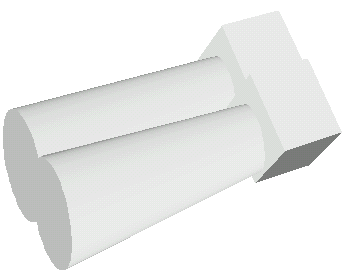
Sample System Revisited
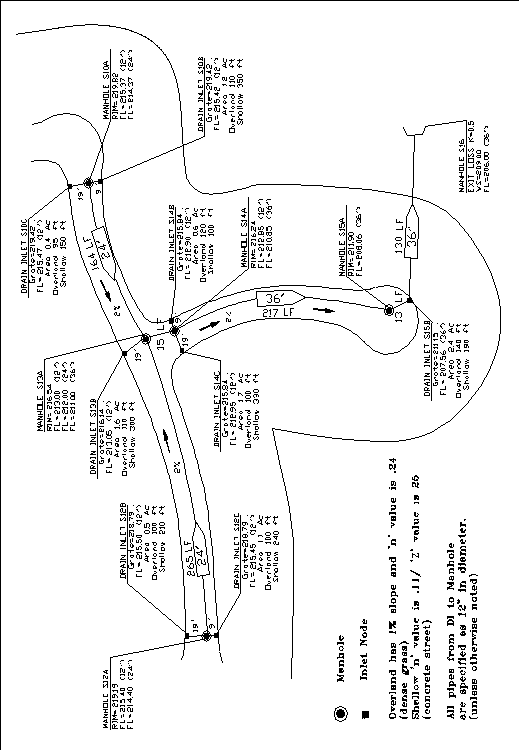
The sample system presented on the previous page is an extension of the system that you had been working with in Tutorials 1 and 2. Notice the similarities in the layout of the pipes, but also be aware that the overall system has taken on the appearance of a development. The ultimate goal of CS Drainage Studio is to be able to analyze complex drainage systems.
This plan will appear in some form throughout the next three lessons. Each topic will build a new aspect into CS Drainage, with this lesson concentrating on Parallel Conveyances.
There are three main instances when parallel conveyances occur. The first is when runoff requires the use of two side-by-side pipes, known as multiple pipe culverts. The second instance is for overland release using street conveyances for a large storm event. The last is for a large storm event analysis for parking areas.
Multiple Pipe Culverts
The need for side by side pipes exists when either larger pipes create extreme expenses or when a pipe must be downsized because of existing constraints in depth and cover.
The premise of the program is able to connect a node to another with a single conveyance. A single node can connect to an unlimited number of upstream connections but that node can have only one downstream conveyance.
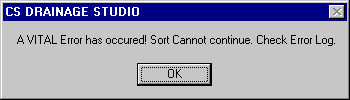
An easy way to understand the idea is to look at the program itself. When the Add/Edit a Conveyance Facility Parameter window is open observe that under the GenInfo tab, only one connection is made between the upstream node and a downstream node. Do not assume that a double pipe can be inputted by adding another conveyance with the same upstream and downstream node identifiers. This will generate an error! As an example, if you were to add two identical pipes to your system and attempted to organize your system you would get errors similar to the following:
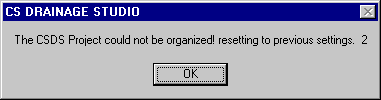
The next error message is given when a system with two identical conveyances is attempting to be calculated. Note that it references the Error List tab which gives the same error message as when the organize command was used.

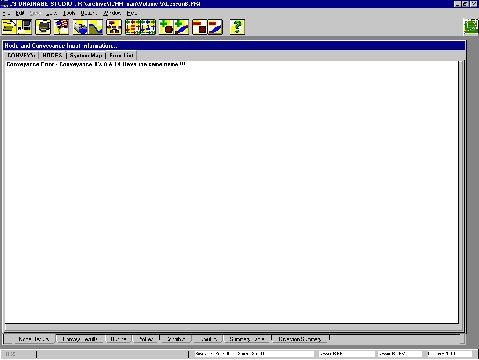
In addition to giving errors, the program will simply not work with two identical conveyances. The way around this is to use the parallel conveyance features to define these additional conveyances.
With only one connection or pipe between the two nodes, multiple culverts must be defined under Parallel Conveyances.
Inputting the System
In order to appreciate parallel conveyances, start this tutorial by inputting all the system data depicted on the Lesson B System. The jurisdiction file to be used is Roseville Peak 10-year storm: Soil D, found under the file
“ROSEV10.jur.
System Information:
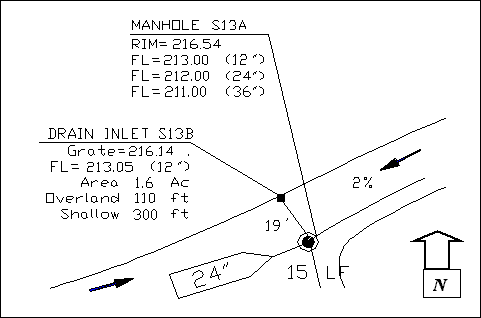
Proposed drain inlets are depicted by a solid square with a “drain inlet” call-out. Next to the callout is the node name. These names were arbitrarily given with the ‘S’ representing System. It is suggested that you use the same node names as given since all referenced figures to the tutorial will involve these particular node names. In your own endeavors, feel free to develop a pattern that is comfortable when naming the nodes because the printouts from CS Drainage Studio will refer to the node names. Identification is crucial to organizing and presenting the data received from CS Drainage Studio.
Underneath the node name is the grate elevation that is input as RIM/GRATE Elev. in the General Data tab under Add/Edit a Node Element (for review see tutorial 1). The next information is the
flow line (FL) used in the Conveyance Profiles.
The next three entries are contributing area, overland release distance, and shallow channelized response distance respectively. These entries need to be inputted in the appropriate places in the Contributing Flow tab under Add/Edit a Node Element window.
The manhole call-out has values for the Rim elevation and the various flow lines
attributed to the entrance or exit of a specified pipe. The specified pipe will be denoted by the diameter of the pipe and on occasion, the direction from which the pipe emerges.
Corresponding pipes can be seen by the diameter boats that appear above the pipe. In the example, a 24” diameter pipe is entering the manhole from the West. Boats do not always appear. If this is the case, then the pipe is a standard 12” diameter pipe as described in the legend of the entire system. Pipe lengths are given in linear feet (LF) and are printed next to the pipes.
The arrows with a numerical percentage, 2% for example, denote the slope of the street and is utilized when entering shallow concentrated channel calculations for response times. Please refer to Tutorial 3 (Lesson A) if you need a refresher on using the Overland and Channel Response Time Calculators. Manning ‘n’ values are provided for the overland and channelized (or shallow) portions are also provided in the lower left corner of the
Lesson B system.
When finished inputting the system, your CSDS Node window should contain 14 nodes and 13 conveyances.
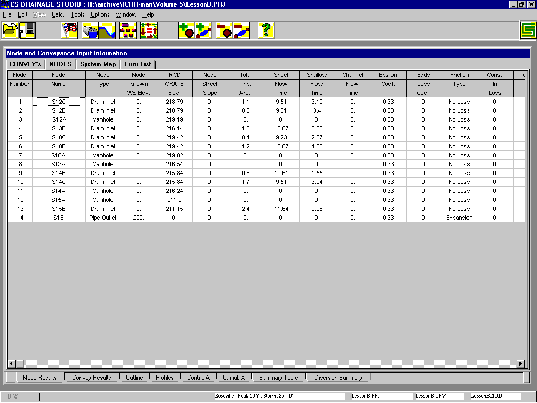
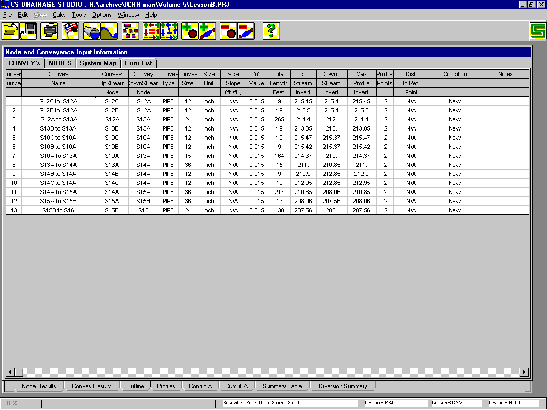
After completing the input portion, calculate the results. The first time after calculation, the results convergence information window will state that convergence has not been reached.
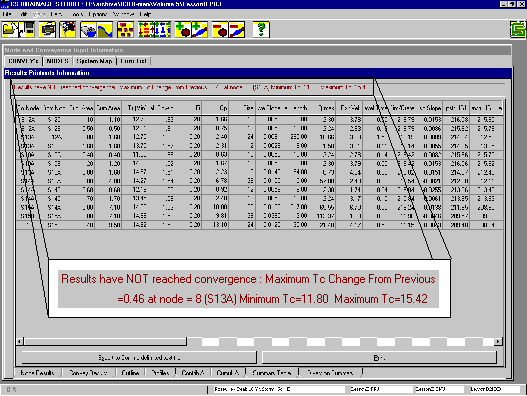
Press the blue re-calculation button once more to obtain convergence. Convergence is not the perfect solution to a system. It simply means that your system is connected properly and the flows could be mathematically simulated within the tolerances you specified. For more information on interpreting the data and optimizing your system, look to Lesson D.
Save this project as LessonB.prj on your hard drive.
Adding a Second Pipe
The concentration of this lesson is multiple culverts and as such, assume that the system needs to have a parallel pipe connection from node S14A to S14B. They both need to be constricted so that each diameter is only 18” due to an imaginary depth conflict with an existing water line.
Parallel conveyances may sound different and somewhat difficult, but inputting them is as simple as the main conveyance paths. Start by returning to the conveyance where the parallel is to be placed. For this example, go to the Convey Name, S14A to S15A. At the Add/Edit a Conveyance Facility Parameter window, move to the Parallel tab.
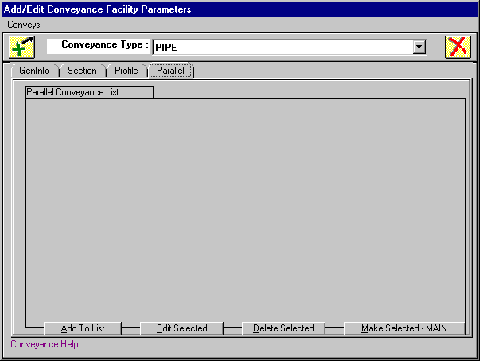
The four button at the bottom of the window access the parallel conveyance tools. Click on Add To List to add a new parallel to your list. Or if you already have parallels at this conveyance, you could highlight an existing parallel and press Edit Selected to edit your parallel conveyance or Delete Selected to remove the conveyance from the list of parallel conveyances.
*Caution:
The delete function can only be undone by exiting out of the window with the red ‘X’ cancel button. Remember that this procedure also cancels all other data entry that may have occurred in the editing of the current conveyance.
Click on Add To List
This will bring up a window that appears the same as the normal conveyance. Set to the Section tab. In order to distinguish where you are, look to the upper left corner where the words Edit Parallel Conveyance are printed.
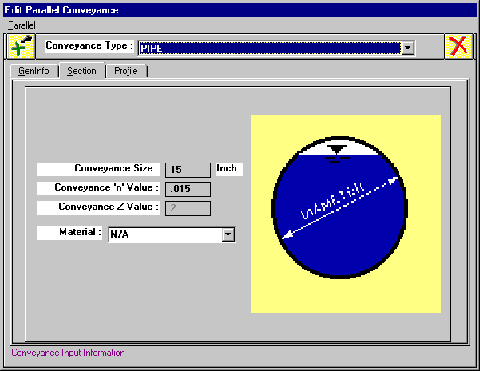
As per specifications, change the Conveyance Size to 18 inches. Moving to the GenInfo tab, you will notice that none of the info can be changed except for the Notes at the bottom.
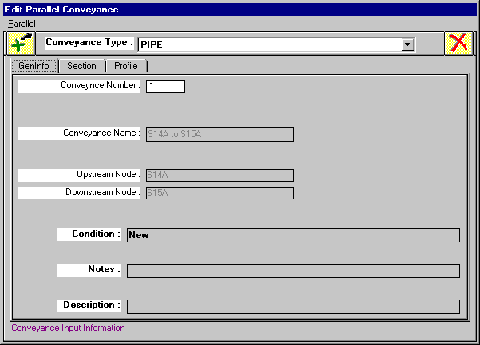
The Gen Info window show the upstream and downstream node connections and acts as a reminder of the conveyance that you are editing.
The next step is to change the Profile.
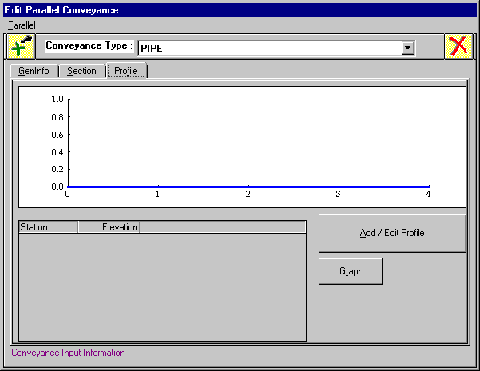
The two 18” pipes are going to be side-by side which means that they both will have the same
flow line elevations at the upstream and downstream ends.
Input the same data as you did for the original pipe profile for the conveyance from S14A to S15A. When the profile is complete, save your data and return to the main Add/Edit a Conveyance window. Notice that you have now created 1 pipe parallel conveyance from S14A to S15A as written in the Parallel Conveyance List.
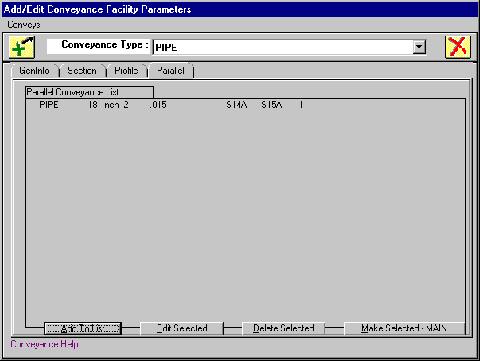
Before exiting out of the conveyance, be sure to change the pipe diameter of the current pipe from 36 to 18 inches.
*Note to the User:
Two 18” diameter pipes with equivalent ‘n’ values are NOT hydraulically equivalent to a single 36” diameter pipe with similar properties.
Once back at the main window, perform a full calculation. Click on the Summary Table tab and observe the conveyance that you just changed. The system is not converged, so iterate your calculations until convergence has been reached.
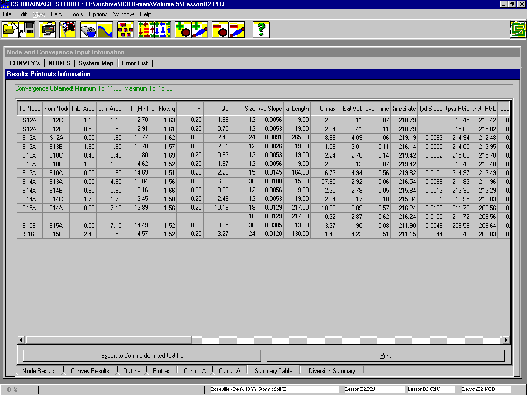
There are now two lines designated for S15A downstream and S14A upstream nodes on the “Summary Table” page of the results. The first line contains the computed results for the main conveyance path such as contributing area, response time, and flow generated by those values. Starting at size, both lines take on values for each specific pipe. The main pipe is the top line while the parallel pipe is the second line.
Convergence Information:

Original and Parallel Pipe Information (Respectively):

Some computed results may differ by small amounts between the original and the parallel pipe. This is a result of the computational tolerances defined. Since these pipes are parallel, not identical, the differences are within acceptable ranges.
Save this project to the file LessonB2.prj, to differentiate from the previous project with only one 36” pipe.
Having completed the multiple culvert example, the next step is to integrate the basics of parallel conveyances in the analysis of large storm events and understand applying what you have learned to Overland Release.
|
